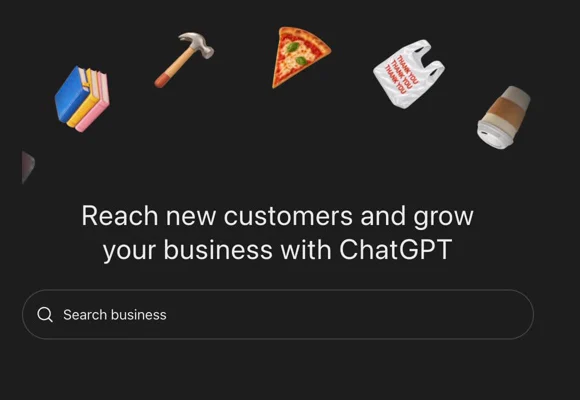
Open ChatGPT Business Hub ↗ and sign in, or choose Business Hub in the ChatGPT web sidebar.
Search for your business by name. Compare the website and identifying details before selecting a listing.
Confirm the account that will manage the business. Use an account the business can maintain over time.
From Rami’s recording, November 15, 2026. Your screen and available options may differ. Tap image to enlarge ↗
Can’t find your business?
An eligible online business may be offered an add-business route. Local stores and restaurants currently can claim only an existing U.S. listing. Use OpenAI Support if the needed route is missing; avoid creating duplicate profiles.
Select one of the methods offered for your actual listing.
Complete the requested check and any remaining claim prompts.
Wait for the decision email and check the claim status. Submission is not approval.
Business email
Receive a code at the business email shown.
Business phone
Use the offered SMS or automated-call option for the listed number.
Website domain
Add the supplied TXT record to your domain’s DNS, then return and select Verify domain. DNS changes can take time.
Shopify
Connect the correct store using an account authorized to manage it.
Use your own verification record
Copy the TXT type, name/host and value exactly from your setup. Never reuse a record from a tutorial or another business. Record the account, business, method and submission date so you can resume later.
Claim verification confirms your connection to the business. Persona verification confirms your identity. Both approvals are needed for the relevant profile-management features, insights, product feeds and an eligible agent.
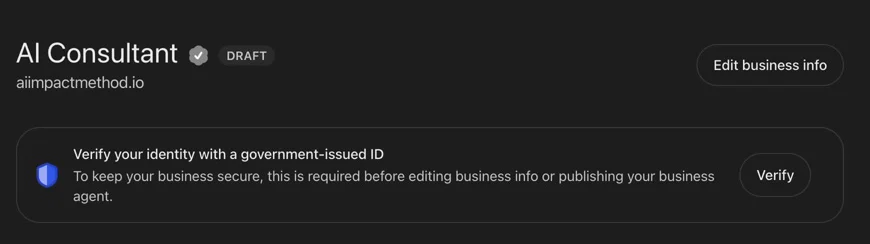
Open Business, select your profile and find Complete verification with Persona in the overview.
Review the official verification flow. Use the legal business details on your records; enter a trade name only where requested.
Submit any requested ID or proof of authority only through that official flow. Wait for the approval email or further instructions.
A draft view from November 15. This screenshot shows a pending identity check, not an approved business. Tap image to enlarge ↗
Before submitting a new profile
When a new profile is created through Persona, OpenAI approval automatically publishes it. There is no separate profile Publish step. Continue when your public details are ready: Support cannot hide, delete or unpublish a published profile through a setup or ownership request. Publishing an agent is a separate choice.
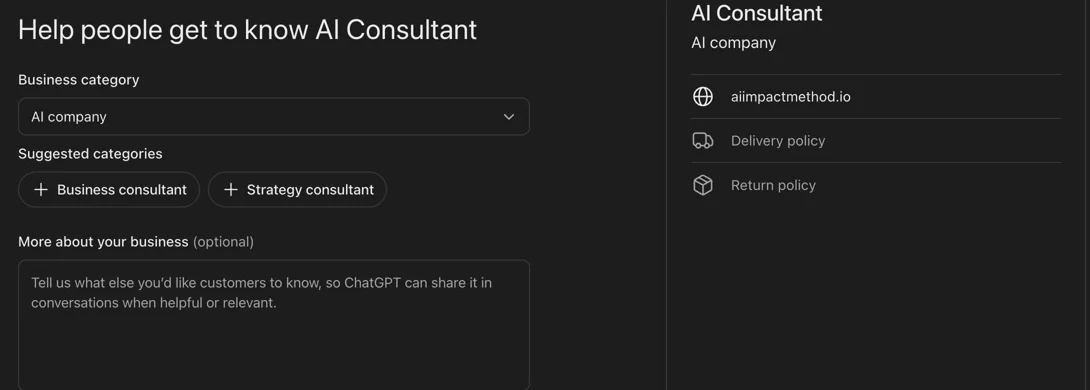
After approval, review the available business-name, category, website, description, logo and policy fields. Make every detail agree with your current website. OpenAI reviews profile changes, so updates can take time to appear.
Recorded November 15. “AI Consultant” and “AI company” are walkthrough examples. Use your actual business name and choose the category that fits it. Tap image to enlarge ↗
A practical starting point.
Replace the brackets with confirmed details. This is a writing aid, not a required platform format.
[Business name] helps [specific audience] with [specific problem or goal] through [services, programs, or products]. We specialize in [main area of expertise]. Our offerings include [main offer types]. Learn about current options at [website].
Give each customer a clear destination.
Understand an offer: a current program or service page.
Compare options: a comparison or FAQ page.
Enroll or buy: the correct enrollment or checkout page.
Ask a question: contact or support.
Request a consultation: a booking page, if you offer consultations.
Selling products?
Shopify merchants can use their connected catalog. For a separate feed, use OpenAI’s current product feed specification ↗. Service businesses should check which catalog options apply rather than inventing a feed format.
Check for an agent option in the approved profile. Agent eligibility is separate: a verified profile alone is not enough. If the option is missing, keep your profile and offer information useful while you check the current requirements.
An available Business Agent can explain your offers and point customers to relevant website pages. The current experience does not directly complete purchases, bookings or order checks. Use your website and support team for those steps.
OFFER INFORMATION SHEET
Offer name and purpose:
Who it serves / who needs a different option:
Requirements:
Inclusions:
Delivery format:
Duration, access period and current dates:
Published price and payment options:
Terms, refund and cancellation policies:
Next-step URL:
Human contact URL:
Last reviewed / information owner:

Mark any unconfirmed detail NEEDS REVIEW. Do not invent missing information.
Give it a clear role.
Adapt these starter instructions to your business and the controls supported in Business Hub. They are a starting point, not a guarantee of any answer.
You are the AI assistant representing [business name]. Help prospective customers understand our offers using the approved business information.

Explain who each offer serves, what it includes, and the next step. Ask a brief clarifying question when it will help someone choose a relevant option.

Use only confirmed prices, dates, inclusions, and policies. If information is missing or unclear, say so and direct the person to [contact page].

Use a warm, clear tone. Do not invent credentials, testimonials, discounts, availability, or guaranteed results. Do not pressure someone who declines.

Do not request passwords, payment details, government IDs, or private client information. Stay within the business's approved role and capabilities.

Provide the relevant approved website link. Do not claim that a purchase, booking, or other action has been completed when it has not.
Review the Business Agents Policy ↗ for your business category and intended use before publication.
1. What does your business help people with?
2. Who is your main program designed for?
3. I am a beginner. Is it suitable for me?
4. What should I have in place before starting?
5. What exactly is included?
6. Is the program live, recorded, or both?
7. How much time should I set aside each week?
8. What does it cost, and are payment options available?
9. How are your two main offers different?
10. Can you guarantee a specific result?
11. What is your refund or cancellation policy?
12. I found an old discount online. Is it still valid?
13. Where can I enroll or request a consultation?
14. How can I speak with someone on your team?
15. What happens if you do not know the answer?
What a passing answer looks like
It matches approved facts, acknowledges gaps, provides a working relevant link and makes the next step clear. Keep a short log: question → incorrect answer → source correction → retest result. Fluency alone does not make an answer correct.
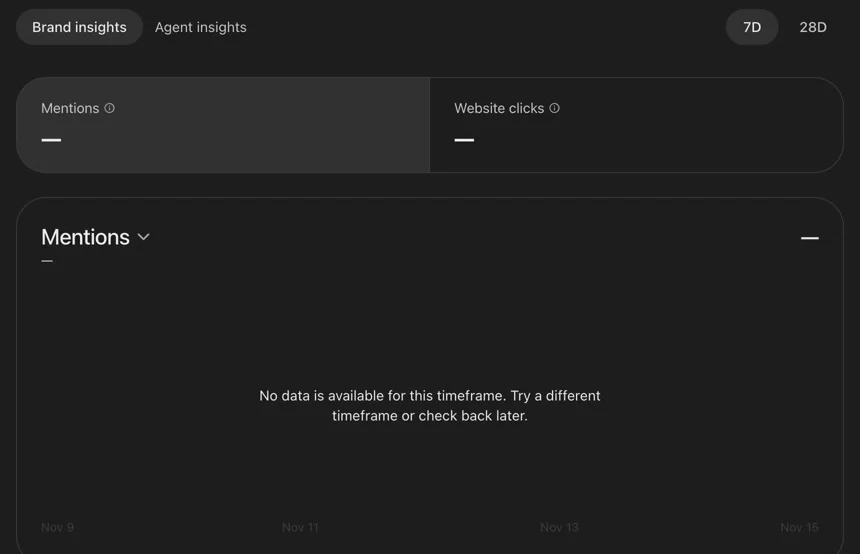
Once approvals are complete, open Insights for the available aggregate mentions, website clicks and discovery topics. Current reporting covers the past 28 days and is subject to privacy thresholds. Businesses do not receive individual customer prompts or agent chats.
Draft walkthrough recorded November 15, with no reportable data displayed. Blank metrics can reflect thresholds, collection or unavailable reporting; they do not prove zero activity. Tap image to enlarge ↗
For an online business, a mention counts a website reference, not just the brand name. A click is not a completed inquiry or sale. Compare Hub signals with results in your own systems.
A practical monthly review
Record the reporting dates and available metrics; avoid adding overlapping 28-day windows.
Use discovery topics to find questions your website could explain better.
Check offer pages for changed prices, dates and policies.
Retest questions that matter to customer decisions.
Review actual inquiries and sales, then choose one specific improvement.
Update material changes when they happen. Give one person responsibility for keeping the information current.
Progress stays in this browser when local storage is available. No business or identity documents are collected here.
If something gets stuck.
Business Hub or my business is missing+
Use the direct Business Hub link and check the account you signed into. Review current availability and the options for your actual business type. If the right route is unavailable, contact OpenAI Support.
Verification is pending or unsuccessful+
Follow the decision/status instructions before trying again. Keep a note of the exact step and any error. Remove private details from screenshots sent to support.
Someone already manages my listing+
Use the ownership-dispute option on the correct profile when appropriate. Do not create a duplicate profile to bypass the issue.
The agent option does not appear+
Check both claim and Persona approval, location, business type and the Business Agents Policy. Some businesses can manage a profile without qualifying for an agent.
Can a teammate or agency help?+
The claiming admin can add teammates or grant agency access. Each person should use their own account. Workspace membership requirements may apply; ask Support if an invitation is blocked.
Is this the same as a ChatGPT Business workspace?+
Business Hub manages a business profile, discovery information and eligible agents. Claiming an eligible business does not require an Ads account or an Enterprise agreement. Check any paid service or upgrade separately before agreeing to it.
Will claiming my business guarantee recommendations?+
No. ChatGPT continues to make independent recommendations and comparisons. Claiming does not guarantee higher placement, recommendations or sales.